PUMMEL

Syntax des StatelessWidgets

https://losfluttern.de/pummelthefish — NICHT IST DA

—> https://github.com/novas1r1/pummel_the_fish

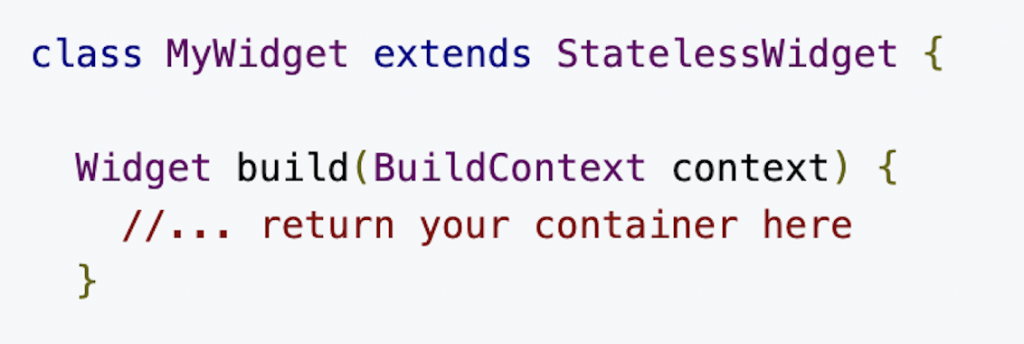
  1. das Word class
  2. Name des Widgets (hier MyWidget)
  3. das Word extends, mit dem wir erben Eigenschaften und Methoden einer Parent-Klasse
  4. StatelessWidget – der Name der Klasse des Parent-Widget, den wir erweitern wollen
  5. im Body (zw. den geschweiften Klammern) steht die Methode build()

Das UI-Herz eines Widgets ist die build()-Methode.
Mit dieser Methode wird ein UI-Element erzeugt und weiter eine UI-Komposition, indem Sie Widgets in andere Widgets verschachteln.
Auf diese Weise entsteht eine baumartige Datenstruktur: Jeder Widget kann andere Widgets enthalten, die üblicherweise als untergeordnete Widgets bezeichnet werden.
Diese hierarchische Anordnung von Widgets als Elementen-Baum ermöglicht der Parameter context mit dem Typ BuildContext.
Dieser context ist – im weiteren Sinne – an sich der UI-Elementen-Baum.
Um zu wissen, wo welcher Element (Widget) sich im Baumstruktur befindet, braucht der context eine Art Widget-ID.
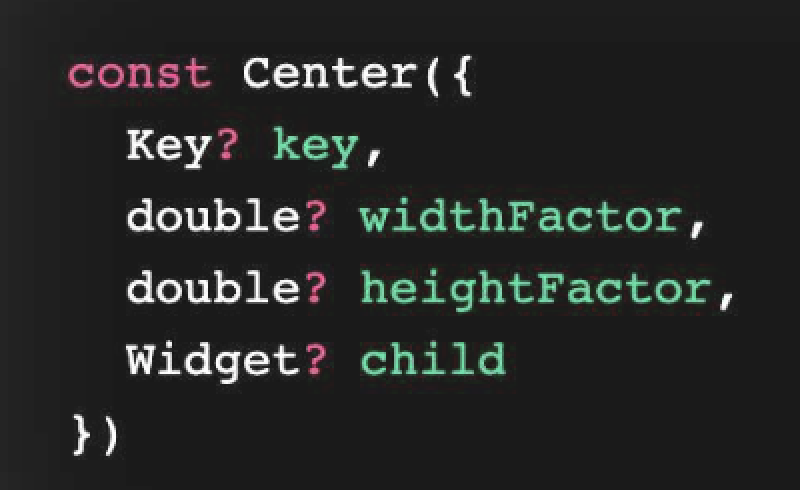
Dafür hat jeder Widget einen key-Parameter und wenn ein Widget erzeugt wird, wird diesem key-Parameter implizit ein Key-Wert vergeben.

Hier ist ein Beispiel dafür, wie der key-Parameter in einer Widget-Klasse „Center“ definiert ist:

Projekte: Python für Fortgeschrittene

Projekte aus Lernquellen

  • Geld aus dem Buch „Python3 für Ausbildung“ (M.Weigend), S.288 (OOP)
  • Abrechnung aus dem Buch „Python3 für Ausbildung“ (M.Weigend), S.294 (OOP)
  • Farbtester aus dem Buch „Python3 für Ausbildung“ (M.Weigend), S.298 (OOP)
  • Zahlenregen aus dem Buch „Python3 für Ausbildung“ (M.Weigend), S.301 (OOP)
  • CodeCademy: A Sorted Tale (Sortierung von Daten)
  • replit – online-Plattform mit Problemlösungen etc.
  • CodeCademy: Pokémon (OOP)
  • CodeCademy: Adopt a Pet (Web-Anwendung, Flask)
  • Turm von Hanoi aus dem Buch „Der Weg zum Profi“ (A. Sweigart) , S.288-301)
  • Vier gewinnt aus dem Buch „Der Weg zum Profi“ (A. Sweigart) , S. 301-306)
  • Plagiarism Checker (PDF zum herunterladen)
  • Wie spät ist es? (I) aus dem Buch „Python3 für Ausbildung“ (M.Weigend), S.371 (Webseiten)
  • Wie spät ist es? (II) aus dem Buch „Python3 für Ausbildung“ (M.Weigend), S.383 (Webseiten)
  • Umfrage aus dem Buch „Python3 für Ausbildung“ (M.Weigend), S.386 (Webseiten)
  • Wie spät ist es? (III) aus dem Buch „Python3 für Ausbildung“ (M.Weigend), S.393 (Webseiten)
  • Wie spät ist es? (IV) aus dem Buch „Python3 für Ausbildung“ (M.Weigend), S.320 (Webseiten)

Rock Paper Scissors game (Tekinter)

Game rules

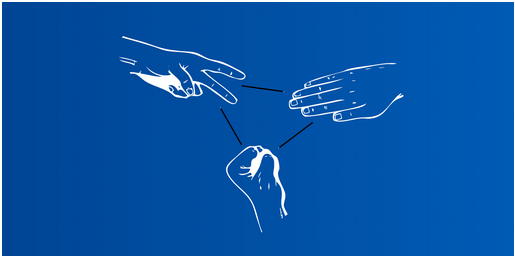
Rock Paper Scissors is played by two players with their hands. In our project, one player will be the computer and the other player will be the user. The user will use a GUI window to play against the computer.

Let’s start with the rules. Each player has three choices at a time: rock, paper, or scissors.

Each player has to choose one of these three mutually exclusive options. If both players choose the same option, then that will be a tie. Hence, no one will get a point.

If user1 selects rock and user2 selects paper, then user2 wins that round. If user1 selects rock and user2 selects scissors, then user1 wins the round.

What if user1 selects paper and user2 selects scissors? Then, user2 wins that round.

A rough design of the game

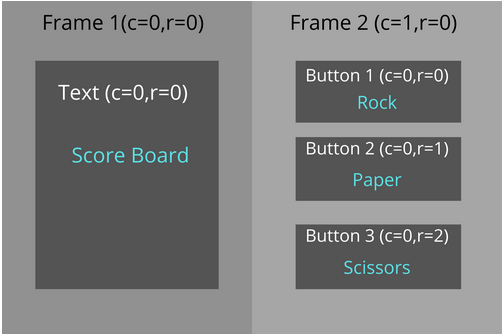
We will create a GUI that has three buttons, one for “Rock”, one for “Paper”, and one for “Scissors”.

The user can click on any of these three buttons to select their choice and the computer will randomly select its choice.

We then compare both these choices and give one point to the winner of that round. We will display the points on the GUI window using a Text widget.

The following is a rough design of the GUI app that we are going to build.

We have mentioned the positions where we are planning to place the frames and widgets. The design is pretty simple so we can focus on the game logic.

Tip: Whenever you build a project, draw a rough design of your app on a piece of paper before you actually start coding. That will help you plan and give you an overview of the project. It is a good practice to follow in all personal coding projects, not just Tkinter projects.
Designing the Game UI

Creating a window
Adding Frames
Designing the first Frame
Designing the second Frame

Creating a window

1
2
3
4
5
6
7
import tkinter as tk

window = tk.Tk()
window.geometry("400x300")
window.title("Rock Paper Scissors Game")

window.mainloop()

Next, we will split this GUI into two parts using Frames.

Adding Frames

We will create two Frame widgets and put them in the GUI using the grid geometry.

We will place the first Frame on the left side of the window, at row 0 and column 0 , and the second Frame on the right side, at row 0 and column 1.

1
2
3
4
5
6
7
8
9
10
11
12
13
import tkinter as tk

window = tk.Tk()
window.geometry("400x300")
window.title("Rock Paper Scissors Game")

frame1 = tk.Frame(window)
frame1.grid(column=0,row=0)

frame2 = tk.Frame(window)
frame2.grid(column=1,row=0)

window.mainloop()

Now, let’s place the widgets in these two Frames.

Designing the second Frame

We will start with designing the first Frame. Our plan is to place a Text widget here that will display the scores of the players (user and computer). Initially, we can keep their scores as “0”. We can also add some instructions to play the game in this Text widget. We will place this Text widget in row 0 and column 0 inside this Frame.

1
2
3
4
5
6
7
8
9
10
11
12
13
14
15
16
17
import tkinter as tk

window = tk.Tk()
window.geometry("400x300")
window.title("Rock Paper Scissors Game")

frame1 = tk.Frame(window)
frame1.grid(column=0,row=0)

frame2 = tk.Frame(window)
frame2.grid(column=1,row=0)

text_area = tk.Text(master=frame1,height=12,width=30,padx=10,pady=10,bg="#CAD5E2")
text_area.grid(column=0,row=0)
text_area.insert(tk.END,"\n\nYour Score : 0 \nComputer Score : 0 \n \nClick on any button to start.")

window.mainloop()

We have added some basic styling to the Text widget using options like

1
height
,
1
width
,
1
padx
and
1
pady
(for providing padding),
1
bg
, etc. We have used a hash code to give the background color. If you want some cool colors with hash codes, check out uicolorpicker.com and choose a color you like.We have inserted some text to display when the game starts. We will see how to update the scores later.

Designing the second Frame

Now, let’s design the second Frame and place the widgets. As per our initial design, we will have three buttons (Rock, Paper, and Scissors) on this Frame. We will place these buttons inside this Frame in rows 0, 1, and 2, while the column number will be 0.

We will give some horizontal and vertical padding between the two Frames to keep the UI clean.

1
2
3
4
5
6
7
8
9
10
11
12
13
14
15
16
17
18
19
20
21
22
23
24
import tkinter as tk

window = tk.Tk()
window.geometry("400x300")
window.title("Rock Paper Scissors Game")

frame1 = tk.Frame(window, padx=5, pady=5)
frame1.grid(column=0,row=0)

frame2 = tk.Frame(window)
frame2.grid(column=1,row=0)

text_area = tk.Text(master=frame1,height=12,width=30,padx=10,pady=10,bg="#CAD5E2")
text_area.grid(column=0,row=0)
text_area.insert(tk.END,"\n\nYour Score : 0 \nComputer Score : 0 \n \nClick on any button to start.")

button1 = tk.Button(frame2,text="      Rock     ",bg="#50DBB4",padx=20,pady=25)
button1.grid(column=0,row=0)
button2 = tk.Button(frame2,text="     Paper    ",bg="#50DBB4",padx=20,pady=25)
button2.grid(column=0,row=1)
button3 = tk.Button(frame2,text="   Scissors  ",bg="#50DBB4",padx=20,pady=25)
button3.grid(column=0,row=2)

window.mainloop()

You can customize the UI further if you want. You can play with the widgets and options to make your UI unique and interesting.

Writing the Game Logic – Part 1
  • Defining the variables
  • Defining the computer choice method
  • Defining the rock, paper, and scissors methods
  • Connecting the methods and buttons

We have designed the game GUI in the previous lesson. Now, let’s write some Python code to implement the working of the game.

Defining the variables

First of all, we will create variables for user score, computer score, user choice, and computer choice.
We will initialize the scores with “0” and the choice variables with empty strings.

1
2
3
4
USER_SCORE = 0
COMP_SCORE = 0
USER_CHOICE = ""
COMP_CHOICE = ""

Defining the computer choice method#

We know that the user selects an option from Rock, Paper, or Scissors by clicking a button. But, how will the computer select its choice? Let’s create the method `random_computer_choice()’ to do that.
Inside this method, the computer will choose an option randomly and return it. We can import and use the random module in Python for this.

1
2
3
4
USER_SCORE = 0
COMP_SCORE = 0
USER_CHOICE = ""
COMP_CHOICE = ""

Defining the rock, paper, and scissors methods

Now, we will define three methods for the three buttons. When a user clicks a button, the corresponding method will be invoked. The method for the “Rock” button will assign the value

1
rock
to the
1
USER_CHOICE
variable. We will also call the
1
random_computer_choice()
method from this method for the computer to select its choice. We will pass these two choices to another method called
1
result()
, which we will define later.

1
2
3
4
5
6
def rock():
    global USER_CHOICE
    global COMP_CHOICE
    USER_CHOICE='rock'
    COMP_CHOICE=random_computer_choice()
    result(USER_CHOICE,COMP_CHOICE)

We made these variables global so that we can use them across the entire program.
Let’s define the methods for the “Paper” and “Scissors” buttons using the same logic.

1
2
3
4
5
6
7
8
9
10
11
12
def paper():
    global USER_CHOICE
    global COMP_CHOICE
    USER_CHOICE='paper'
    COMP_CHOICE=random_computer_choice()
    result(USER_CHOICE,COMP_CHOICE)
def scissors():
    global USER_CHOICE
    global COMP_CHOICE
    USER_CHOICE='scissors'
    COMP_CHOICE=random_computer_choice()
    result(USER_CHOICE,COMP_CHOICE)

Connecting the methods and buttons#

Let’s put these variables and methods in our GUI app above the code for our widgets. That way, these methods will be available for the buttons to use.
We will link these methods with the buttons using the command option.

1
2
3
4
5
6
7
8
9
10
11
12
13
14
15
16
17
18
19
20
21
22
23
24
25
26
27
28
29
30
31
32
33
34
35
36
37
38
39
40
41
42
43
44
45
46
47
48
49
50
51
52
53
54
55
56
57
import random
import tkinter as tk

window = tk.Tk()
window.geometry("400x300")
window.title("Rock Paper Scissors Game")

USER_SCORE = 0
COMP_SCORE = 0
USER_CHOICE = ""
COMP_CHOICE = ""

def random_computer_choice():
    return random.choice(['rock','paper','scissors'])

def result(x,y):
    print("We will define it soon...")

def rock():
    global USER_CHOICE
    global COMP_CHOICE
    USER_CHOICE='rock'
    COMP_CHOICE=random_computer_choice()
    result(USER_CHOICE,COMP_CHOICE)

def paper():
    global USER_CHOICE
    global COMP_CHOICE
    USER_CHOICE='paper'
    COMP_CHOICE=random_computer_choice()
    result(USER_CHOICE,COMP_CHOICE)

def scissors():
    global USER_CHOICE
    global COMP_CHOICE
    USER_CHOICE='scissors'
    COMP_CHOICE=random_computer_choice()
    result(USER_CHOICE,COMP_CHOICE)

frame1 = tk.Frame(window, padx=5, pady=5)
frame1.grid(column=0,row=0,pady=5)

frame2 = tk.Frame(window)
frame2.grid(column=1,row=0)

text_area = tk.Text(master=frame1,height=12,width=30,padx=10,pady=10,bg="#CAD5E2")
text_area.grid(column=0,row=0)
text_area.insert(tk.END,"\n\nYour Score : 0 \nComputer Score : 0 \n \nClick on any button to start.")

button1 = tk.Button(frame2,text="      Rock     ",bg="#50DBB4",padx=20,pady=25,command=rock)
button1.grid(column=0,row=0)
button2 = tk.Button(frame2,text="     Paper    ",bg="#50DBB4",padx=20,pady=25,command=paper)
button2.grid(column=0,row=1)
button3 = tk.Button(frame2,text="   Scissors  ",bg="#50DBB4",padx=20,pady=25,command=scissors)
button3.grid(column=0,row=2)

window.mainloop()

In the above code, we just created new methods and defined some variables. We did not add any functionality as of now. That is why the output is the same, and the buttons are not executable at the moment.
So, with that, we have the user choice and computer choice inputs ready. Now, we need to process these two variables and perform the calculations and updates.
Writing the Game Logic – Part 2
  • Accepting the input parameters
  • Writing the core logic of the game
  • Updating the scoreboard
  • Let’s run the app

Let’s define the result() method, which will implement the core logic of the game.

Accepting the input parameters
We will start by accepting the user choice and computer choice as parameters of the method.
Let’s also initialize the global variables which store the scores.

1
2
3
def result(user,comp):
    global USER_SCORE
    global COMP_SCORE

Writing the core logic of the game

The core game logic is the most important part of the game. Without this code, the game cannot run.
Take a look at the following table that shows all the different scenarios in the game. We will implement the logic to address all of these options.

User’s ChoiceComputer’s ChoiceWinner
RockRockTie
RockPaperComputer
RockScissorsUser
PaperRockUser
PaperPaperTie
PaperScissorsComputer
ScissorsRockComputer
ScissorsPaperUser
ScissorsScissorsTie
How can we implement this in Python? We will use conditional statements.
We will implement the logic by using if-elif-else conditions. Based on the winner, we will increment the score.
1
2
3
4
5
6
7
8
9
10
11
12
13
14
15
16
17
18
19
20
21
22
23
if(user==comp):
        print("Tie")
    elif(user=="rock"):
        if(comp=="scissors"):
            print("You win")
            USER_SCORE+=1
        else:
            print("Comp wins")
            COMP_SCORE+=1
    elif(user=="paper"):
        if(comp=="rock"):
            print("You win")
            USER_SCORE+=1
        else:
            print("Comp wins")
            COMP_SCORE+=1
    elif(user=="scissors"):
        if(comp=="paper"):
            print("You win")
            USER_SCORE+=1
        else:
            print("Comp wins")
            COMP_SCORE+=1

Updating the scoreboard

We have written the logic to find the winner and update the score. Now, we need to update the scoreboard of the game, which is handled by a Text widget.
We will define a new Text widget and replace the original Text widget with this new one.
We can place the scores inside a string using string formatting. Finally, we will insert that string into the Text widget.

1
2
3
4
text_area = tk.Text(master=frame1,height=12,width=30,padx=10,pady=10,bg="#CAD5E2")
text_area.grid(column=0,row=0)
answer = "\n\nYour Choice: {uc} \nComputer's Choice : {cc} \n\nYour Score : {u} \nComputer Score : {c} ".format(uc=USER_CHOICE,cc=COMP_CHOICE,u=USER_SCORE,c=COMP_SCORE)
text_area.insert(tk.END,answer)

Let’s run the app

Let’s place the

1
result()
method in the Tkinter code and run the app.

1
2
3
4
5
6
7
8
9
10
11
12
13
14
15
16
17
18
19
20
21
22
23
24
25
26
27
28
29
30
31
32
33
34
35
36
37
38
39
40
41
42
43
44
45
46
47
48
49
50
51
52
53
54
55
56
57
58
59
60
61
62
63
64
65
66
67
68
69
70
71
72
73
74
75
76
77
78
79
80
81
82
83
84
85
import random
import tkinter as tk

window = tk.Tk()
window.geometry("400x300")
window.title("Rock Paper Scissors Game")

USER_SCORE = 0
COMP_SCORE = 0
USER_CHOICE = ""
COMP_CHOICE = ""

def random_computer_choice():
    return random.choice(['rock','paper','scissors'])

def result(user,comp):
    global USER_SCORE
    global COMP_SCORE
    if(user==comp):
        print("Tie")
    elif(user=="rock"):
        if(comp=="scissors"):
            print("You win")
            USER_SCORE+=1
        else:
            print("Comp wins")
            COMP_SCORE+=1
    elif(user=="paper"):
        if(comp=="rock"):
            print("You win")
            USER_SCORE+=1
        else:
            print("Comp wins")
            COMP_SCORE+=1
    elif(user=="scissors"):
        if(comp=="paper"):
            print("You win")
            USER_SCORE+=1
        else:
            print("Comp wins")
            COMP_SCORE+=1
    text_area = tk.Text(master=frame1,height=12,width=30,padx=10,pady=10,bg="#CAD5E2")
    text_area.grid(column=0,row=0)
    answer = "\n\nYour Choice: {uc} \nComputer's Choice : {cc} \n\nYour Score : {u} \nComputer Score : {c} ".format(uc=USER_CHOICE,cc=COMP_CHOICE,u=USER_SCORE,c=COMP_SCORE)
    text_area.insert(tk.END,answer)

def rock():
    global USER_CHOICE
    global COMP_CHOICE
    USER_CHOICE='rock'
    COMP_CHOICE=random_computer_choice()
    result(USER_CHOICE,COMP_CHOICE)

def paper():
    global USER_CHOICE
    global COMP_CHOICE
    USER_CHOICE='paper'
    COMP_CHOICE=random_computer_choice()
    result(USER_CHOICE,COMP_CHOICE)

def scissors():
    global USER_CHOICE
    global COMP_CHOICE
    USER_CHOICE='scissors'
    COMP_CHOICE=random_computer_choice()
    result(USER_CHOICE,COMP_CHOICE)

frame1 = tk.Frame(window, padx=5, pady=5)
frame1.grid(column=0,row=0)

frame2 = tk.Frame(window)
frame2.grid(column=1,row=0)

text_area = tk.Text(master=frame1,height=12,width=30,padx=10,pady=10,bg="#CAD5E2")
text_area.grid(column=0,row=0)
text_area.insert(tk.END,"\n\nYour Score : 0 \nComputer Score : 0 \n \nClick on any button to start.")

button1 = tk.Button(frame2,text="      Rock     ",bg="#50DBB4",padx=20,pady=25,command=rock)
button1.grid(column=0,row=0)
button2 = tk.Button(frame2,text="     Paper    ",bg="#50DBB4",padx=20,pady=25,command=paper)
button2.grid(column=0,row=1)
button3 = tk.Button(frame2,text="   Scissors  ",bg="#50DBB4",padx=20,pady=25,command=scissors)
button3.grid(column=0,row=2)

window.mainloop()

Congratulations, our Rock Paper Scissors game is ready! You can now play the game against the computer by running the code.

If you want to customize the app further, go ahead. Remember, experimenting with your app is the best way to learn Tkinter.

For example, you could try to add a new button called “Restart” in the GUI. When the user clicks the button, the scores will be set to 0, and the game will restart. Give it a try!