comming soon

comming soon
Rennpferde beim Sportwetten
Aufgabe für Dictionary Comprehensions
Welches Rennpferd war zwischen 1970 und 1980 am längsten aktiv?
Hier sind die berümtsten Rennpferde ausgelistet:
1 | print('Liste berühmter Rennpferde:')<br />race_horses = {<br />'Acatenango': (1993, 2005),<br />'Hoof Hearted': (1973, 1978),<br />'Seabiscuit': (1933, 1947),<br />'Anita Hanjab': (1951, 1969),<br />'Oil Beef Hooked': (1989, 1997),<br />'Ben Timover': (1974, 1986),<br />'Secretariat': (1972, 1989),<br />'Sea the Moon': (2014, 2020)<br />}<br />print('race_horses:', race_horses) |
def add(p1, p2):

    sum = p1 + p2

    return sum


print(add(2, 4))
widget.place(relx = 0.5, rely = 0.5, anchor = CENTER)
The Place geometry manager is the simplest of the three general geometry managers provided in Tkinter. It allows you explicitly set the position and size of a window, either in absolute terms, or relative to another window. You can access the place manager through the place() method which is available for all standard widgets. It is usually not a good idea to use place() for ordinary window and dialog layouts; its simply too much work to get things working as they should. Use the pack() or grid() managers for such purposes.
Note : place() method can be used with grid() method as well as with pack() method.
When we use pack() or grid() managers, then it is very easy to put two different widgets separate to each other but putting one of them inside other is a bit difficult. But this can easily be achieved by place() method. In place() method, we can use in_ option to put one widget inside other.
1 2 3 4 5 6 7 8 9 | a=5 b=3 c=a+b print(f"Die Aufgabe: {a} + {b}") print("Bitte Lösungsvorschlag eingeben:") z = input() zahl = int(z) print("Ihre Eingabe:", z) print("Das Ergebnis:", c) |
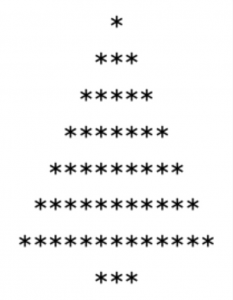
Schreibe ein Programm, das die folgenden Muster in der Konsole ausgibt:
Verzweigungen
Einseitige Verzweigung
Zeiseitige Verzweigung (if…else)
Fallunterscheidung (if…elif…else)
Bedingungen
Boolesche Werte
Boolesche Operatoren
Vergleichsketten
Bedingte Wiederholung – while
Endloswiederholung
Iteratoren for
Wiederholungen mit range()
Definition
Syntax
Funktionsnamen
Typangabe
Funktionsannotation
Parameter / Argumente
Optionale und voreingestellte (Default) Parameter
Funktion testen
Prozeduren
return-Anweisung
Positions- und Schlüßelwortargumente
Calltips
Docstring
Signatur
Build-In Funktionen
Globale und lokale Variablen
Rekursion
Beispiel:

Zur Umwandlung des gegebenen Texts durchlaufen wir diesen zeichenweise von vorne nach hinten. Das Ergebnis sammeln wir in einem neuen String. Finden wir einen Vokal, fügen wir die übergebene Ersatzzeichenfolge ein, ansonsten den Konsonanten (bzw. genauer das Originalzeichen, was auch eine Ziffer oder ein Satzzeichen sein könnte):
1 2 3 4 5 6 7 8 | def join(values, delimiter): result = "" for i, current_value in enumerate(values): result += current_value # Kein Trenner nach letztem Vorkommen if i < len(values) - 1: result += delimiter return result |
Python-Shortcut Das Zusammenfügen von Strings lässt sich mit der geeigneten Funktion join()schön kompakt, verständlich und ohne Spezialbehandlung schreiben:
1 | result = delimiter.join(values) |
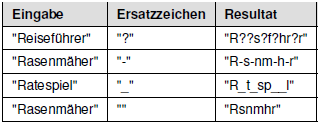
Zur Umwandlung des gegebenen Texts durchlaufen wir diesen zeichenweise von vorne nach hinten. Das Ergebnis sammeln wir in einem neuen String. Finden wir einen Vokal, fügen wir die übergebene Ersatzzeichenfolge ein, ansonsten den Konsonanten (bzw. genauer das Originalzeichen, was auch eine Ziffer oder ein Satzzeichen sein könnte):
1 2 3 4 5 6 7 8 9 10 | def translate_vowel(text, replacement): translated = "" for letter in text: if is_vowel(letter): translated += replacement else: translated += letter return translated def is_vowel(letter): return letter in "AÄEIOÖUüaäeioöuü" |
Rock Paper Scissors is played by two players with their hands. In our project, one player will be the computer and the other player will be the user. The user will use a GUI window to play against the computer.
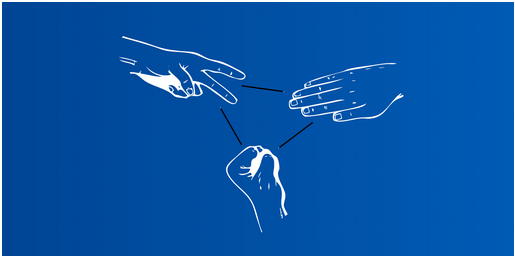
Let’s start with the rules. Each player has three choices at a time: rock, paper, or scissors.
Each player has to choose one of these three mutually exclusive options. If both players choose the same option, then that will be a tie. Hence, no one will get a point.
If user1 selects rock and user2 selects paper, then user2 wins that round. If user1 selects rock and user2 selects scissors, then user1 wins the round.
What if user1 selects paper and user2 selects scissors? Then, user2 wins that round.
We will create a GUI that has three buttons, one for “Rock”, one for “Paper”, and one for “Scissors”.
The user can click on any of these three buttons to select their choice and the computer will randomly select its choice.
We then compare both these choices and give one point to the winner of that round. We will display the points on the GUI window using a Text widget.
The following is a rough design of the GUI app that we are going to build.
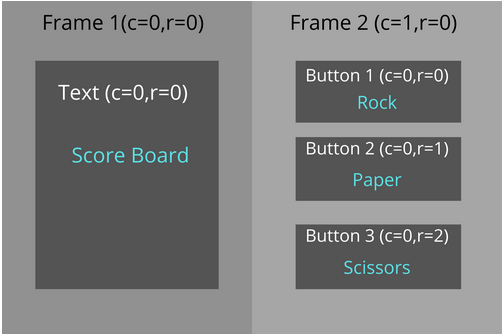
We have mentioned the positions where we are planning to place the frames and widgets. The design is pretty simple so we can focus on the game logic.
Tip: Whenever you build a project, draw a rough design of your app on a piece of paper before you actually start coding. That will help you plan and give you an overview of the project. It is a good practice to follow in all personal coding projects, not just Tkinter projects.
Creating a window
Adding Frames
Designing the first Frame
Designing the second Frame
Creating a window
1 2 3 4 5 6 7 | import tkinter as tk window = tk.Tk() window.geometry("400x300") window.title("Rock Paper Scissors Game") window.mainloop() |
Next, we will split this GUI into two parts using Frames.
Adding Frames
We will create two Frame widgets and put them in the GUI using the grid geometry.
We will place the first Frame on the left side of the window, at row 0 and column 0 , and the second Frame on the right side, at row 0 and column 1.
1 2 3 4 5 6 7 8 9 10 11 12 13 | import tkinter as tk window = tk.Tk() window.geometry("400x300") window.title("Rock Paper Scissors Game") frame1 = tk.Frame(window) frame1.grid(column=0,row=0) frame2 = tk.Frame(window) frame2.grid(column=1,row=0) window.mainloop() |
Now, let’s place the widgets in these two Frames.
Designing the second Frame
We will start with designing the first Frame. Our plan is to place a Text widget here that will display the scores of the players (user and computer). Initially, we can keep their scores as “0”. We can also add some instructions to play the game in this Text widget. We will place this Text widget in row 0 and column 0 inside this Frame.
1 2 3 4 5 6 7 8 9 10 11 12 13 14 15 16 17 | import tkinter as tk window = tk.Tk() window.geometry("400x300") window.title("Rock Paper Scissors Game") frame1 = tk.Frame(window) frame1.grid(column=0,row=0) frame2 = tk.Frame(window) frame2.grid(column=1,row=0) text_area = tk.Text(master=frame1,height=12,width=30,padx=10,pady=10,bg="#CAD5E2") text_area.grid(column=0,row=0) text_area.insert(tk.END,"\n\nYour Score : 0 \nComputer Score : 0 \n \nClick on any button to start.") window.mainloop() |
We have added some basic styling to the Text widget using options like
1 | height |
1 | width |
1 | padx |
1 | pady |
1 | bg |
Designing the second Frame
Now, let’s design the second Frame and place the widgets. As per our initial design, we will have three buttons (Rock, Paper, and Scissors) on this Frame. We will place these buttons inside this Frame in rows 0, 1, and 2, while the column number will be 0.
We will give some horizontal and vertical padding between the two Frames to keep the UI clean.
1 2 3 4 5 6 7 8 9 10 11 12 13 14 15 16 17 18 19 20 21 22 23 24 | import tkinter as tk window = tk.Tk() window.geometry("400x300") window.title("Rock Paper Scissors Game") frame1 = tk.Frame(window, padx=5, pady=5) frame1.grid(column=0,row=0) frame2 = tk.Frame(window) frame2.grid(column=1,row=0) text_area = tk.Text(master=frame1,height=12,width=30,padx=10,pady=10,bg="#CAD5E2") text_area.grid(column=0,row=0) text_area.insert(tk.END,"\n\nYour Score : 0 \nComputer Score : 0 \n \nClick on any button to start.") button1 = tk.Button(frame2,text=" Rock ",bg="#50DBB4",padx=20,pady=25) button1.grid(column=0,row=0) button2 = tk.Button(frame2,text=" Paper ",bg="#50DBB4",padx=20,pady=25) button2.grid(column=0,row=1) button3 = tk.Button(frame2,text=" Scissors ",bg="#50DBB4",padx=20,pady=25) button3.grid(column=0,row=2) window.mainloop() |
You can customize the UI further if you want. You can play with the widgets and options to make your UI unique and interesting.
We have designed the game GUI in the previous lesson. Now, let’s write some Python code to implement the working of the game.
Defining the variables
First of all, we will create variables for user score, computer score, user choice, and computer choice.
We will initialize the scores with “0” and the choice variables with empty strings.
1 2 3 4 | USER_SCORE = 0 COMP_SCORE = 0 USER_CHOICE = "" COMP_CHOICE = "" |
Defining the computer choice method#
We know that the user selects an option from Rock, Paper, or Scissors by clicking a button. But, how will the computer select its choice? Let’s create the method `random_computer_choice()’ to do that.
Inside this method, the computer will choose an option randomly and return it. We can import and use the random module in Python for this.
1 2 3 4 | USER_SCORE = 0 COMP_SCORE = 0 USER_CHOICE = "" COMP_CHOICE = "" |
Defining the rock, paper, and scissors methods
Now, we will define three methods for the three buttons. When a user clicks a button, the corresponding method will be invoked. The method for the “Rock” button will assign the value
1 | rock |
1 | USER_CHOICE |
1 | random_computer_choice() |
1 | result() |
1 2 3 4 5 6 | def rock(): global USER_CHOICE global COMP_CHOICE USER_CHOICE='rock' COMP_CHOICE=random_computer_choice() result(USER_CHOICE,COMP_CHOICE) |
We made these variables global so that we can use them across the entire program.
Let’s define the methods for the “Paper” and “Scissors” buttons using the same logic.
1 2 3 4 5 6 7 8 9 10 11 12 | def paper(): global USER_CHOICE global COMP_CHOICE USER_CHOICE='paper' COMP_CHOICE=random_computer_choice() result(USER_CHOICE,COMP_CHOICE) def scissors(): global USER_CHOICE global COMP_CHOICE USER_CHOICE='scissors' COMP_CHOICE=random_computer_choice() result(USER_CHOICE,COMP_CHOICE) |
Connecting the methods and buttons#
Let’s put these variables and methods in our GUI app above the code for our widgets. That way, these methods will be available for the buttons to use.
We will link these methods with the buttons using the command option.
1 2 3 4 5 6 7 8 9 10 11 12 13 14 15 16 17 18 19 20 21 22 23 24 25 26 27 28 29 30 31 32 33 34 35 36 37 38 39 40 41 42 43 44 45 46 47 48 49 50 51 52 53 54 55 56 57 | import random import tkinter as tk window = tk.Tk() window.geometry("400x300") window.title("Rock Paper Scissors Game") USER_SCORE = 0 COMP_SCORE = 0 USER_CHOICE = "" COMP_CHOICE = "" def random_computer_choice(): return random.choice(['rock','paper','scissors']) def result(x,y): print("We will define it soon...") def rock(): global USER_CHOICE global COMP_CHOICE USER_CHOICE='rock' COMP_CHOICE=random_computer_choice() result(USER_CHOICE,COMP_CHOICE) def paper(): global USER_CHOICE global COMP_CHOICE USER_CHOICE='paper' COMP_CHOICE=random_computer_choice() result(USER_CHOICE,COMP_CHOICE) def scissors(): global USER_CHOICE global COMP_CHOICE USER_CHOICE='scissors' COMP_CHOICE=random_computer_choice() result(USER_CHOICE,COMP_CHOICE) frame1 = tk.Frame(window, padx=5, pady=5) frame1.grid(column=0,row=0,pady=5) frame2 = tk.Frame(window) frame2.grid(column=1,row=0) text_area = tk.Text(master=frame1,height=12,width=30,padx=10,pady=10,bg="#CAD5E2") text_area.grid(column=0,row=0) text_area.insert(tk.END,"\n\nYour Score : 0 \nComputer Score : 0 \n \nClick on any button to start.") button1 = tk.Button(frame2,text=" Rock ",bg="#50DBB4",padx=20,pady=25,command=rock) button1.grid(column=0,row=0) button2 = tk.Button(frame2,text=" Paper ",bg="#50DBB4",padx=20,pady=25,command=paper) button2.grid(column=0,row=1) button3 = tk.Button(frame2,text=" Scissors ",bg="#50DBB4",padx=20,pady=25,command=scissors) button3.grid(column=0,row=2) window.mainloop() |
In the above code, we just created new methods and defined some variables. We did not add any functionality as of now. That is why the output is the same, and the buttons are not executable at the moment.
So, with that, we have the user choice and computer choice inputs ready. Now, we need to process these two variables and perform the calculations and updates.
Let’s define the result() method, which will implement the core logic of the game.
Accepting the input parameters
We will start by accepting the user choice and computer choice as parameters of the method.
Let’s also initialize the global variables which store the scores.
1 2 3 | def result(user,comp): global USER_SCORE global COMP_SCORE |
Writing the core logic of the game
The core game logic is the most important part of the game. Without this code, the game cannot run.
Take a look at the following table that shows all the different scenarios in the game. We will implement the logic to address all of these options.
| User’s Choice | Computer’s Choice | Winner |
| Rock | Rock | Tie |
| Rock | Paper | Computer |
| Rock | Scissors | User |
| Paper | Rock | User |
| Paper | Paper | Tie |
| Paper | Scissors | Computer |
| Scissors | Rock | Computer |
| Scissors | Paper | User |
| Scissors | Scissors | Tie |
1 2 3 4 5 6 7 8 9 10 11 12 13 14 15 16 17 18 19 20 21 22 23 | if(user==comp): print("Tie") elif(user=="rock"): if(comp=="scissors"): print("You win") USER_SCORE+=1 else: print("Comp wins") COMP_SCORE+=1 elif(user=="paper"): if(comp=="rock"): print("You win") USER_SCORE+=1 else: print("Comp wins") COMP_SCORE+=1 elif(user=="scissors"): if(comp=="paper"): print("You win") USER_SCORE+=1 else: print("Comp wins") COMP_SCORE+=1 |
Updating the scoreboard
We have written the logic to find the winner and update the score. Now, we need to update the scoreboard of the game, which is handled by a Text widget.
We will define a new Text widget and replace the original Text widget with this new one.
We can place the scores inside a string using string formatting. Finally, we will insert that string into the Text widget.
1 2 3 4 | text_area = tk.Text(master=frame1,height=12,width=30,padx=10,pady=10,bg="#CAD5E2") text_area.grid(column=0,row=0) answer = "\n\nYour Choice: {uc} \nComputer's Choice : {cc} \n\nYour Score : {u} \nComputer Score : {c} ".format(uc=USER_CHOICE,cc=COMP_CHOICE,u=USER_SCORE,c=COMP_SCORE) text_area.insert(tk.END,answer) |
Let’s run the app
Let’s place the
1 | result() |
1 2 3 4 5 6 7 8 9 10 11 12 13 14 15 16 17 18 19 20 21 22 23 24 25 26 27 28 29 30 31 32 33 34 35 36 37 38 39 40 41 42 43 44 45 46 47 48 49 50 51 52 53 54 55 56 57 58 59 60 61 62 63 64 65 66 67 68 69 70 71 72 73 74 75 76 77 78 79 80 81 82 83 84 85 | import random import tkinter as tk window = tk.Tk() window.geometry("400x300") window.title("Rock Paper Scissors Game") USER_SCORE = 0 COMP_SCORE = 0 USER_CHOICE = "" COMP_CHOICE = "" def random_computer_choice(): return random.choice(['rock','paper','scissors']) def result(user,comp): global USER_SCORE global COMP_SCORE if(user==comp): print("Tie") elif(user=="rock"): if(comp=="scissors"): print("You win") USER_SCORE+=1 else: print("Comp wins") COMP_SCORE+=1 elif(user=="paper"): if(comp=="rock"): print("You win") USER_SCORE+=1 else: print("Comp wins") COMP_SCORE+=1 elif(user=="scissors"): if(comp=="paper"): print("You win") USER_SCORE+=1 else: print("Comp wins") COMP_SCORE+=1 text_area = tk.Text(master=frame1,height=12,width=30,padx=10,pady=10,bg="#CAD5E2") text_area.grid(column=0,row=0) answer = "\n\nYour Choice: {uc} \nComputer's Choice : {cc} \n\nYour Score : {u} \nComputer Score : {c} ".format(uc=USER_CHOICE,cc=COMP_CHOICE,u=USER_SCORE,c=COMP_SCORE) text_area.insert(tk.END,answer) def rock(): global USER_CHOICE global COMP_CHOICE USER_CHOICE='rock' COMP_CHOICE=random_computer_choice() result(USER_CHOICE,COMP_CHOICE) def paper(): global USER_CHOICE global COMP_CHOICE USER_CHOICE='paper' COMP_CHOICE=random_computer_choice() result(USER_CHOICE,COMP_CHOICE) def scissors(): global USER_CHOICE global COMP_CHOICE USER_CHOICE='scissors' COMP_CHOICE=random_computer_choice() result(USER_CHOICE,COMP_CHOICE) frame1 = tk.Frame(window, padx=5, pady=5) frame1.grid(column=0,row=0) frame2 = tk.Frame(window) frame2.grid(column=1,row=0) text_area = tk.Text(master=frame1,height=12,width=30,padx=10,pady=10,bg="#CAD5E2") text_area.grid(column=0,row=0) text_area.insert(tk.END,"\n\nYour Score : 0 \nComputer Score : 0 \n \nClick on any button to start.") button1 = tk.Button(frame2,text=" Rock ",bg="#50DBB4",padx=20,pady=25,command=rock) button1.grid(column=0,row=0) button2 = tk.Button(frame2,text=" Paper ",bg="#50DBB4",padx=20,pady=25,command=paper) button2.grid(column=0,row=1) button3 = tk.Button(frame2,text=" Scissors ",bg="#50DBB4",padx=20,pady=25,command=scissors) button3.grid(column=0,row=2) window.mainloop() |
Congratulations, our Rock Paper Scissors game is ready! You can now play the game against the computer by running the code.
If you want to customize the app further, go ahead. Remember, experimenting with your app is the best way to learn Tkinter.
For example, you could try to add a new button called “Restart” in the GUI. When the user clicks the button, the scores will be set to 0, and the game will restart. Give it a try!
Beispiel:
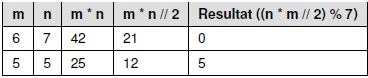
Algorithmus Die Implementierung folgt einfach der mathematischen Operationen:
1 2 | def calc(m, n): return m * n // 2 % 7 |
Statt des speziellen Operators // kann man auch eine Umwandlung des Ergebnisses der einfachen Division in eine Ganzzahl durch einen Aufruf von int() vornehmen:
1 2 | def calc_v2(m, n): return int(m * n / 2) % 7 |
myOptionMenu = tk.OptionMenu(parent, variable, default=None, *values)
Die OptionMenu() Methode erwartet parent, variable, default, and values als Parameter. Der parent-Parameter steht für window oder frame, in deren ihre Widgets platziert werden.
Der variable-Parameter ist ein tk.StringVar – Objekt, der den Wert der ausgewählten Option des Menüs erfasst.
Als default -Parameter kann ein gewünstes Wert eigegeben werden, der immer am Anfang der Optionen-Liste erscheint.
Der values -Parameter ist eine Liste mit Optionen.